 WiseCord

What a Discord member list contains
Every server keeps one roster. For each member Discord stores the account's numeric user ID, the username, the display name or server nickname, the roles the member holds, the date they joined this server, and the date the account itself was created. The sidebar shows you a slice of this, grouped by role and sorted by online status. It does not show join dates or IDs, and it does not let you search, sort or copy the whole thing.
That gap is why people search for a Discord member list exporter. The list exists; Discord simply does not hand it over.
How to see all members in a Discord server
Three ways, in order of how much they show you.
1. The sidebar
Open the server, click the members icon in the top right, and scroll. On servers under about a thousand members you will see everyone. On larger servers Discord hides offline members, so the sidebar becomes a list of who is online right now, plus a count.
2. Server Settings, if you own the server
Owners and admins get a Members page under Server Settings with search, role filters and join dates. It is still not exportable, and it needs Manage Server permission, so it does not help on a server you only joined.
3. An account-based tool
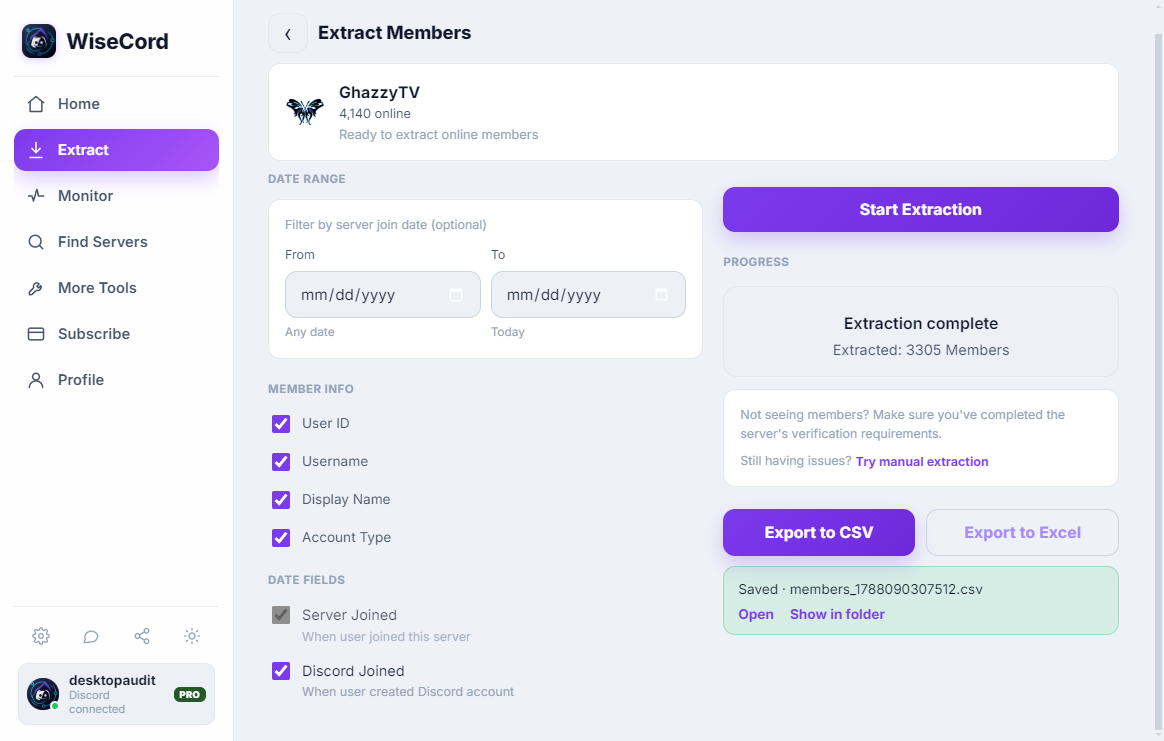
WiseCord signs in as you, opens the server, reads the member list the same way your client does, and shows it as a sortable table with every column filled in. Because it reads through your own account, it works on every server you belong to, admin or not. From there, one tap sends the table to a spreadsheet.
How to export the member list to Excel or CSV
Install WiseCord on Windows, macOS or Android and sign in with the Discord account that is already in the server. Then:
- Open Member export and pick the server.
- Choose the columns you want and whether to include bots (they are excluded by default).
- Start the extraction. The list fills in at a normal client pace; a few thousand members takes a couple of minutes.
- Tap Export and choose XLSX or CSV. IDs are written as text so Excel does not round them.
The step-by-step version with screenshots is in how to export a Discord member list to Excel.
Member list exporters compared
Every tool works around the same missing button. They differ in what they need from you and what they can see.
| Method | Needs admin | Servers you only joined | Export format | Risk to your account |
|---|---|---|---|---|
| WiseCord (account-based app) | No | Yes | XLSX, CSV | Low: client pace, no hidden endpoints, zero reported bans |
| Browser extensions (DiscordKit, dSaver, dTools) | No | Yes | CSV | Medium: full access to every page you open, breaks when Discord updates |
| Invited bot with your own script | Yes | No | Whatever you write | Low, but only on servers you administer |
| Scraper platforms (Apify, Thunderbit) | No | Yes | JSON, CSV | High: your token is pasted into their cloud and used at their pace |
| Copy and paste from the sidebar | No | Yes | Text | None, but no IDs or dates and hours of work |
The longer review of each option is in Discord member list exporter: tools compared. If the choice is between WiseCord and an extension, this comparison covers the trade-offs.
Getting the list without admin rights
Most guides quietly assume you own the server. If you do not, invited bots and Server Settings are closed to you, and the only things left are tools that read through your own account. That is the category WiseCord sits in. What you get is exactly what your account can see: the members Discord renders for you, with the columns Discord attaches to them. Nothing more, and nothing a server owner has hidden from members.
Keeping the list current
A member list is a snapshot. Servers you work turn over constantly, and the members who joined this week are usually the ones worth talking to. Rather than re-exporting on a schedule, switch on monitoring for the server and WiseCord sends a push notification the moment someone new appears. On Pro the monitor runs in the cloud, so alerts keep landing with the app closed and the phone off, and they can be delivered to Telegram. The full picture is on the Discord tracker page.
Using the list responsibly
The list tells you who is in a community and how long they have been there. What you do next is governed by Discord's rules, not the tool's. Keep outreach to a normal human pace, do not mass-DM strangers, and use the copy limits built into the app so you never trip Discord's own friend-request caps. The account safety guide has the specifics.